
How to use PlayMark
Every game here is still being made, and you can help shape it. Saw a bug, got confused, or had an idea? Pause the game, tap the spot on the picture, and tell us in a few words. It takes about ten seconds, and we tell you when it is fixed.
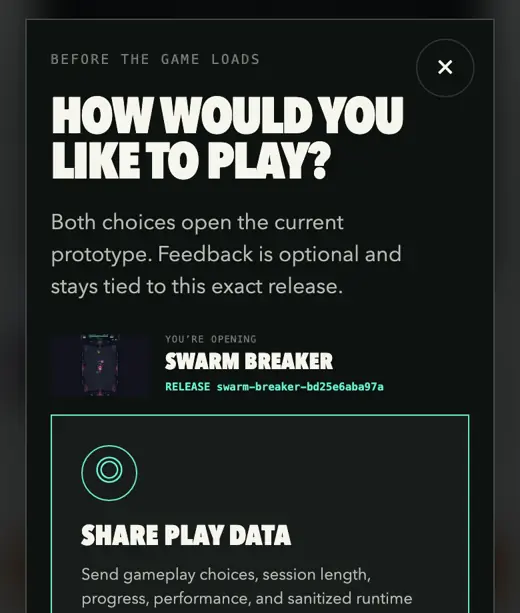
Choose Share play data 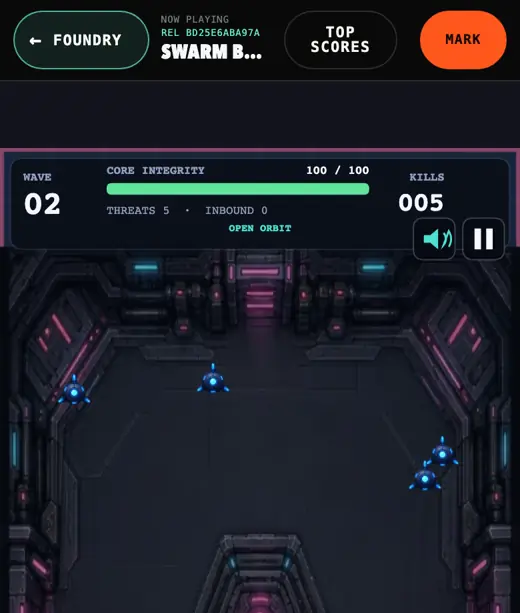
Tap Mark (or press M) 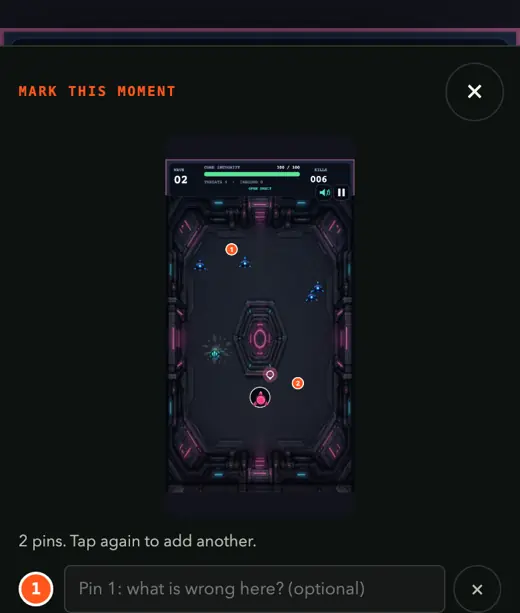
Tap the spot to pin it 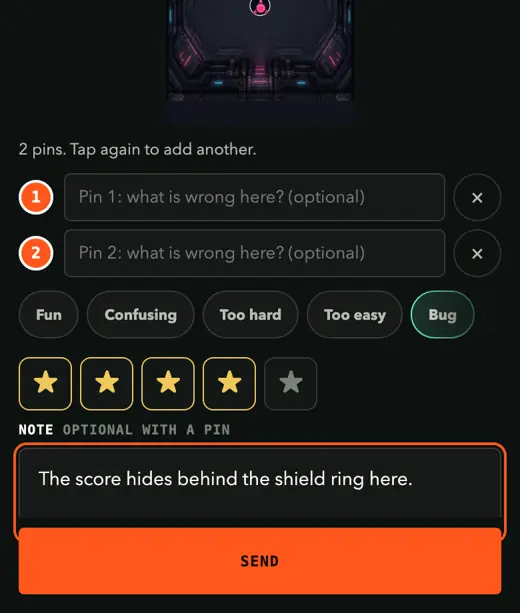
Pick a tag, add a note, Send
Before you start
Sign in with Continue with Google. PlayMark is for signed-in players, because we send your mark's progress back to your account. You can play every game without signing in, but you cannot send a mark.
When a game asks How would you like to play?, choose Share play data. If you choose Play without sharing, you can still rate the game and send a note, but not a marked picture. Some games skip this question.
PlayMark works in most games on the Portal, on phone and on computer. In a game without it, the same button opens a short rating and note form instead.
Send a mark
- Pause on the moment. While you play, tap Mark in the bar above the game. On a keyboard, press M. In some games the pause screen also has a Mark this button. The game freezes on the picture you were looking at.
- Pin what you mean. Tap the picture where the problem is. Each tap adds a numbered pin, and each pin can have a short note, like "I could not tap this" or "this wall is see-through". A mark needs at least one pin or a note.
- Pick a tag (optional). Fun, Confusing, Too hard, Too easy, Bug, Controls, Slow, Visuals, Audio, More content, Idea or Change it.
- Add a note or stars. Say what happened and what you expected. The note is optional once you have a pin. Stars rate the game from 1 to 5.
- Tap Send. The game carries on right away and you see "Sent. We’ll tell you when it’s fixed." If your connection drops, the mark is kept and sent the next time you open the Portal.
Changed your mind? Press Esc or close the sheet, and the game carries on where you left it.
What makes a great mark
- One problem per mark. Send another mark for the next one.
- Put the pin right on the thing: the button, the enemy, the gap.
- Say what you expected: "I thought the door would open."
- Ideas and praise count too. Tell us what you would love to see, and what was fun.
After you send it
Open Me, then Account, invites and sign out. My marks lists each mark and where it stands:
- Received: it reached us.
- The team will repair it: we are working on it.
- Repaired: a new version of the game has the fix. Play it, then tap Accept the repair, or Still wrong: reopen if it is not right yet.
- Closed by the team: we decided not to change it this time.
When one of your marks is repaired, the Portal also shows a note with a Review button the next time you visit.
What a mark shares
Only when you tap Send, we receive the paused picture, your pins, tags and note, what the game was doing, its recent error messages, and your last 30 seconds of taps and key presses. That is how we see exactly what you saw. It is linked to your Portal account so we can tell you about the fix. Nothing is sent while you just play.
Read the privacy notice, or download or delete what we hold on Your data.
Something else?
A problem with the Portal itself, or something you want to report privately? Use Report a problem.